在使用kettle的过程中,发现在spoon界面执行job的时候极其不稳定,经常出现单个任务卡死,或者spoon直接闪退,内存溢出等问题。
内存溢出的问题之前有写过一个解决的方式,但是只能减少内存溢出的出现次数,并没有完全解决这样的问题,就算是分配再大的内存给他,也同样会出现卡死闪退之类的问题。
为了解决这些问题,还是决定使用脚本执行,Windows使用自带的任务计划执行,Linux使用crontab定时执行。
1. 编写kettle脚本
编写bat脚本
::将CMD的命令回显功能关闭
@echo off

::隐藏命令窗口执行
if "%1" == "h" goto begin
mshta vbscript:createobject("wscript.shell").run("%~nx0 h",0)(window.close)&&exit
:begin

::进入d盘
D:
::进入kettle路径
cd D:\Soft\kettle\data-integration
::使用kitchen命令执行job文件,ktr使用pan执行
kitchen /file:D:\kettle_code\ETL_JOB\pyjob.kjb /level:Base>>D:\kettle8.2\data-integration\logs\pyjob.log
kitchen 命令有以下这些参数
/rep : Repository name
/user : Repository username
/pass : Repository password
/job : The name of the job to launch
/dir : The directory (dont forget the leading /)
/file : The filename (Job XML) to launch
/level : The logging level (Basic, Detailed, Debug, Rowlevel, Error, Nothing)
/logfile : The logging file to write to
/listdir : List the directories in the repository
/listjobs : List the jobs in the specified directory
/listrep : List the available repositories
/norep : Do not log into the repository
/version : show the version, revision and build date
/param : Set a named parameter <NAME>=<VALUE>. For example -param:FOO=bar
/listparam : List information concerning the defined parameters in the specified job.
/export : Exports all linked resources of the specified job. The argument is the name of a ZIP
编写vbs实现静默执行
在使用上面代码的过程中,发现并没有完全在后台运行,虽然cmd马上退出,但是还是有弹出框。所以还是直接执行vbs文件来实现在后台执行。
- 创建.bat文件,内容如下:
::进入d盘
D:
::进入kettle路径
cd D:\Soft\kettle\data-integration
::使用kitchen命令执行job文件,ktr使用pan执行
kitchen /file:D:\kettle_code\ETL_JOB\pyjob.kjb /level:Base>>D:\kettle8.2\data-integration\logs\pyjob.log- 创建.vbs文件,内容如下:
Set WshShell = CreateObject("WScript.Shell")
WshShell.Run "cmd /c job.bat", 0
其中job.bat需要填写刚写好的bat文件绝对路径。
2. Windows任务计划自动执行
操作流程
首先需要确定,执行任务的用户有执行批处理脚本的权限,这里还是建议使用administrator用户登录创建。
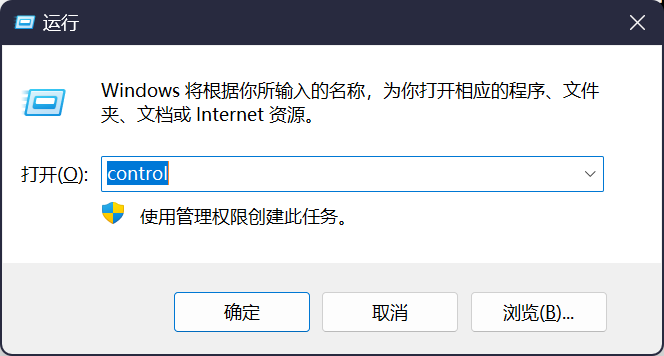
1. 打开控制面板
win + r 打开运行,输入control
2. 打开任务计划
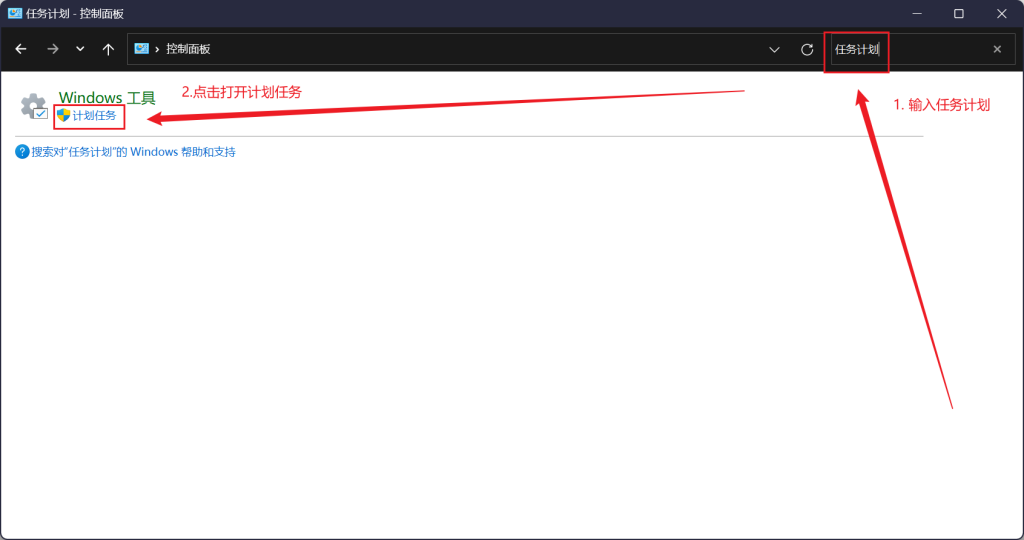
3. 创建一个任务的文件夹(不创建也行,只要你还能找到他)
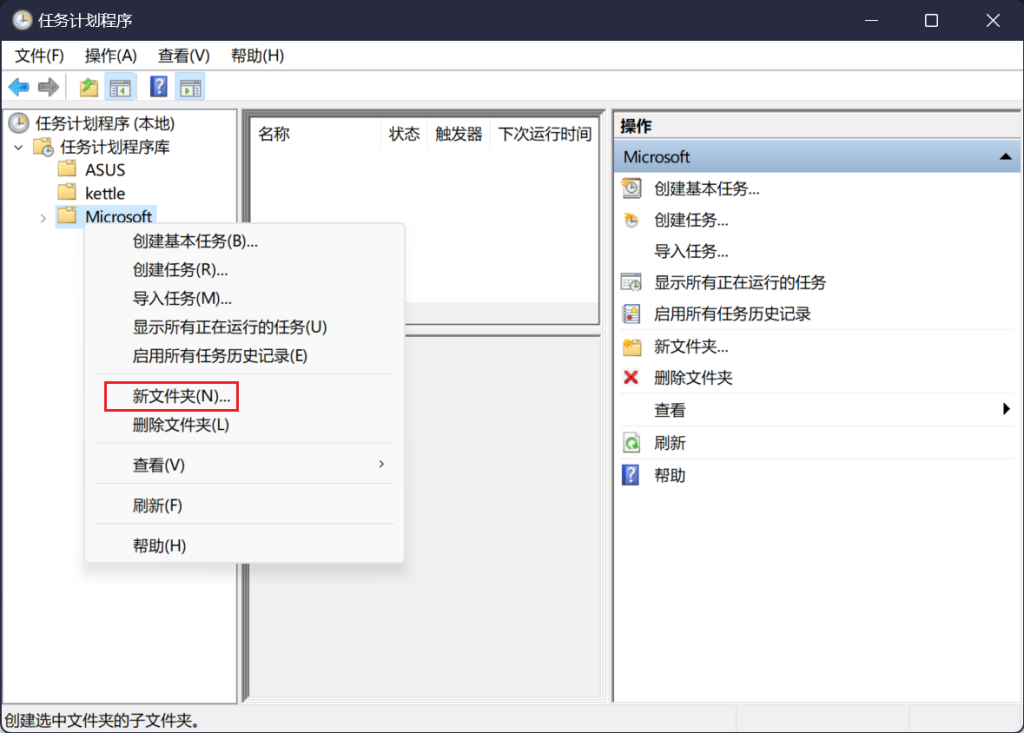
4. 创建任务
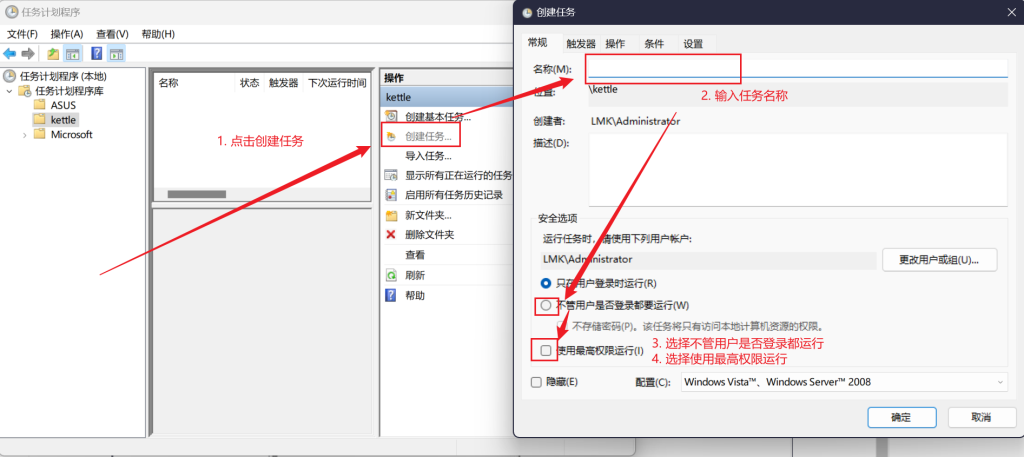
5. 创建触发器
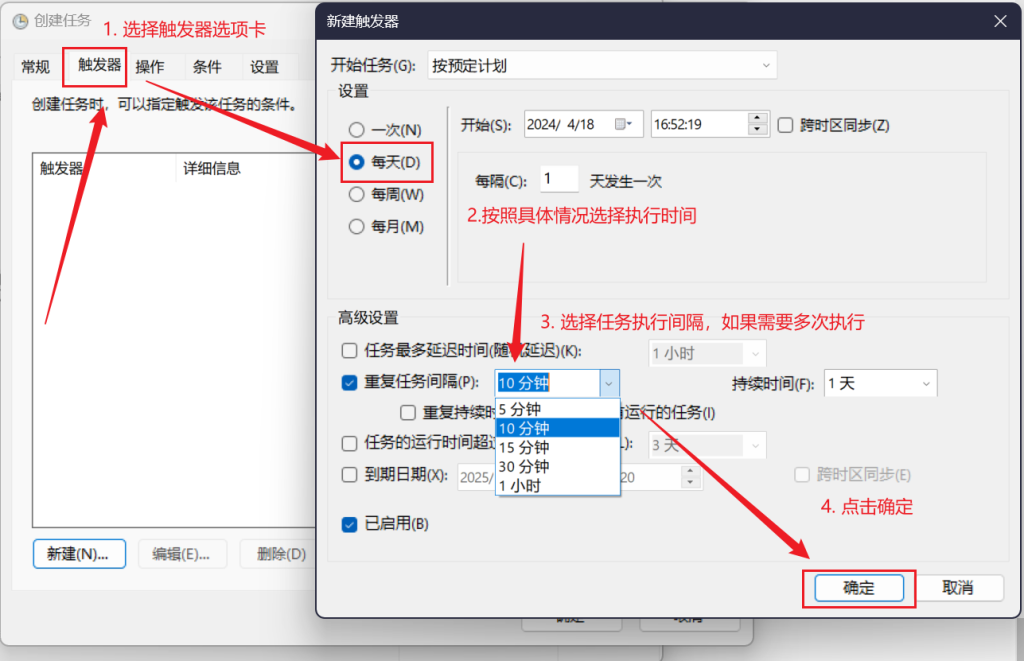
6. 选择执行的程序
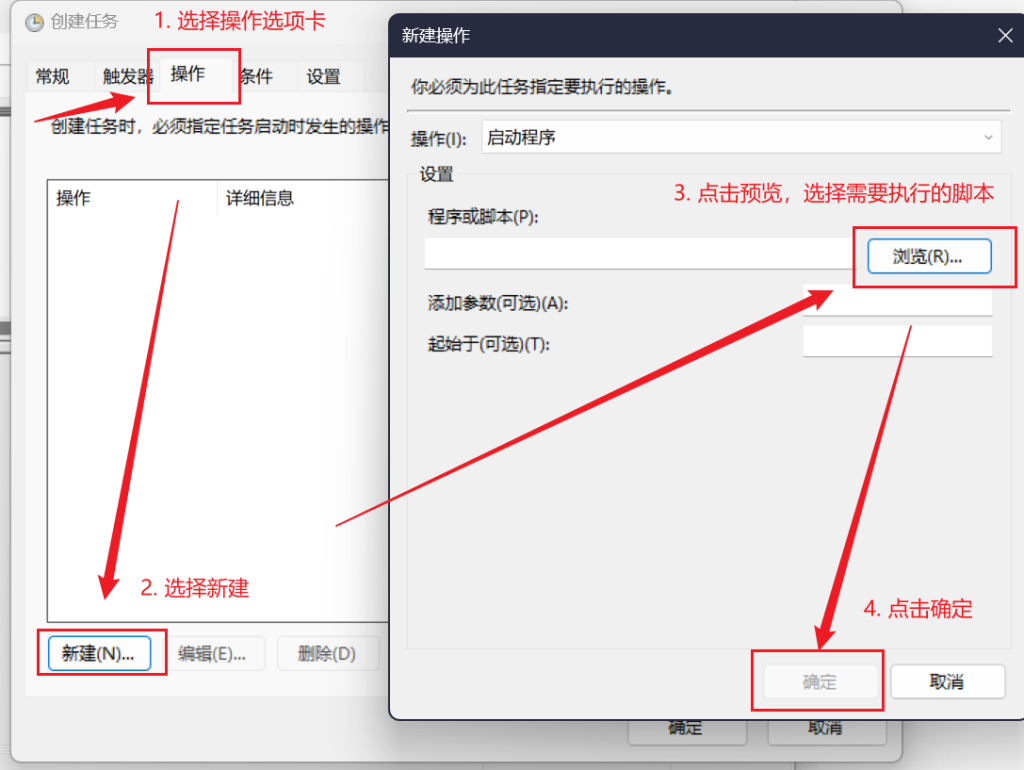
7. 最后点击确定,需要输入管理员用户的密码。
权限问题任务未执行
更换任务执行用户
如果任务创建好之后显示任务未运行,或被禁止执行,很有可能是任务执行用户权限不够。
建议更换任务执行用户为管理员用户,操作流程如下:
1.双击打开任务,选择更改用户或组
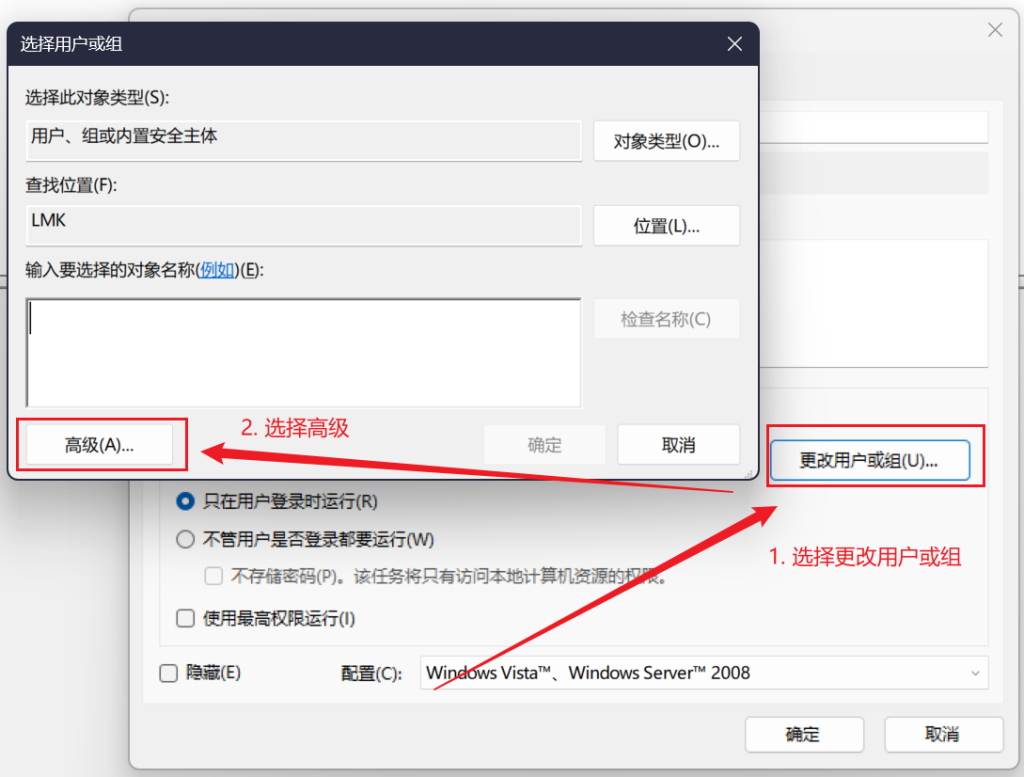
2. 打开高级
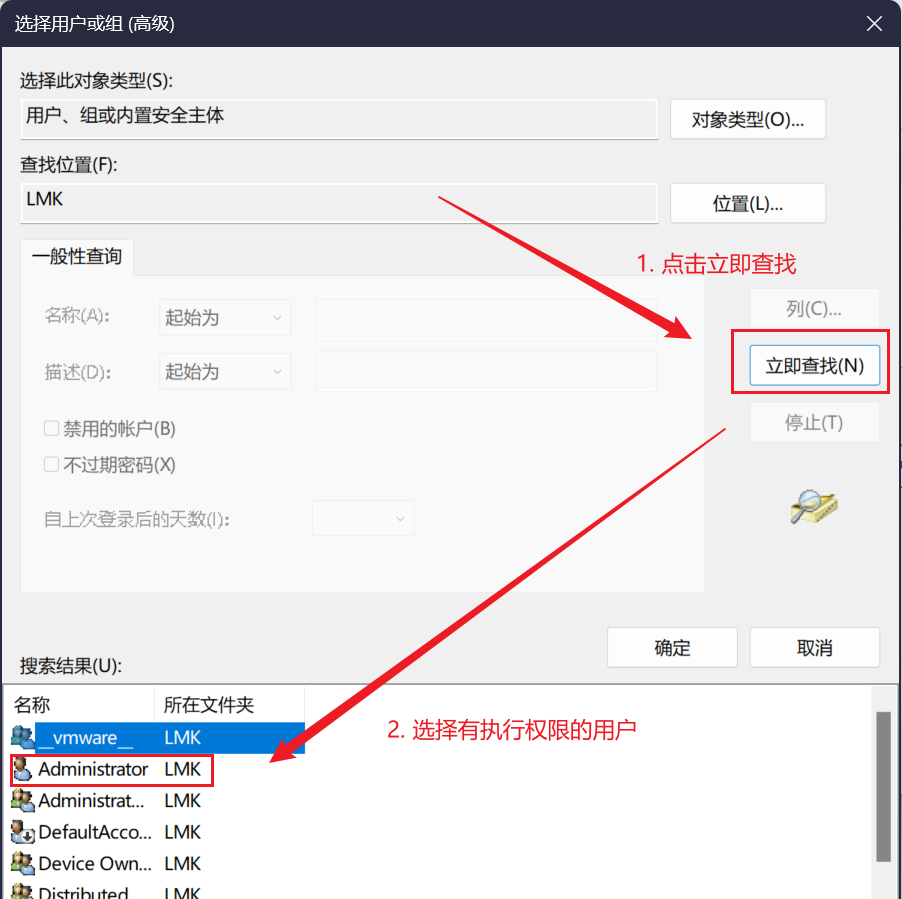
3. 选择管理员用户点击确定。
我在配置的时候确实也遇到过使用管理员用户也无法执行的情况,这时候选择管理员用户下面的组就可以执行了。
给用户执行批处理文件权限
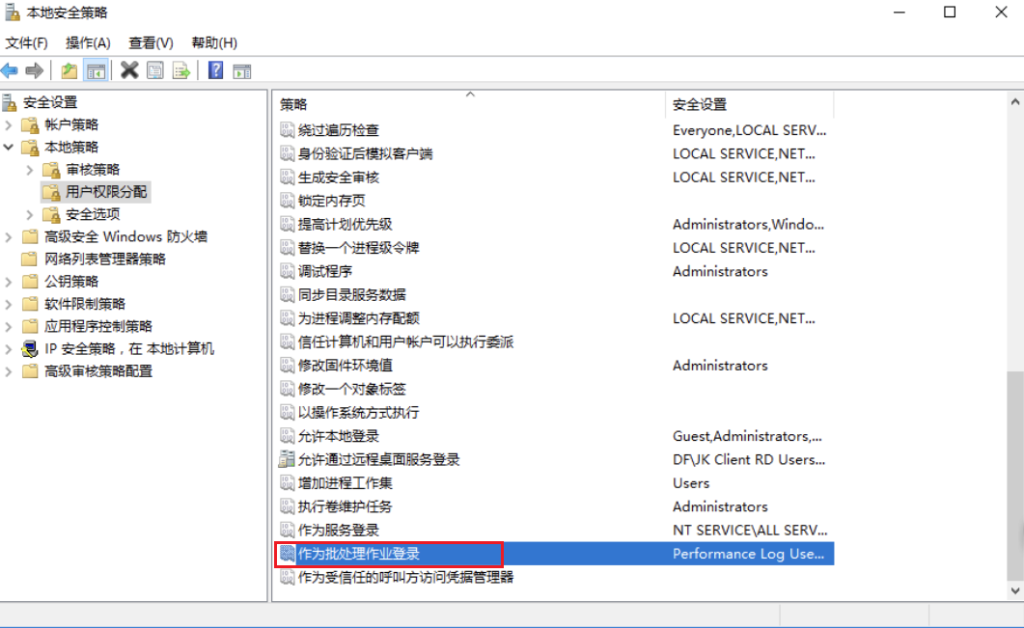
如果不能使用管理员用户,需要给其他用户执行脚本的权限。
win + r 运行,输入secpol.msc
需要在作为批处理作业登录中添加对应的用户。